To make additional style customizations to your site other than options already available – go to Theme Options >> Other Options > Custom CSS. Here you may insert your CSS code and even override theme styles.
The first Modern skin CSS stylesheet is for all displays. If you’d like to narrow down some specific CSS for only desktop or only mobile, there are two extra stylesheets for you to add that custom code to. The very last CSS stylesheet at the bottom of this page is for Legacy skin only, and will only apply if you have the Legacy theme skin active (we recommend that you upgrade to Photocrati Pro, with Modern skin active if you’re running a legacy version of the theme).
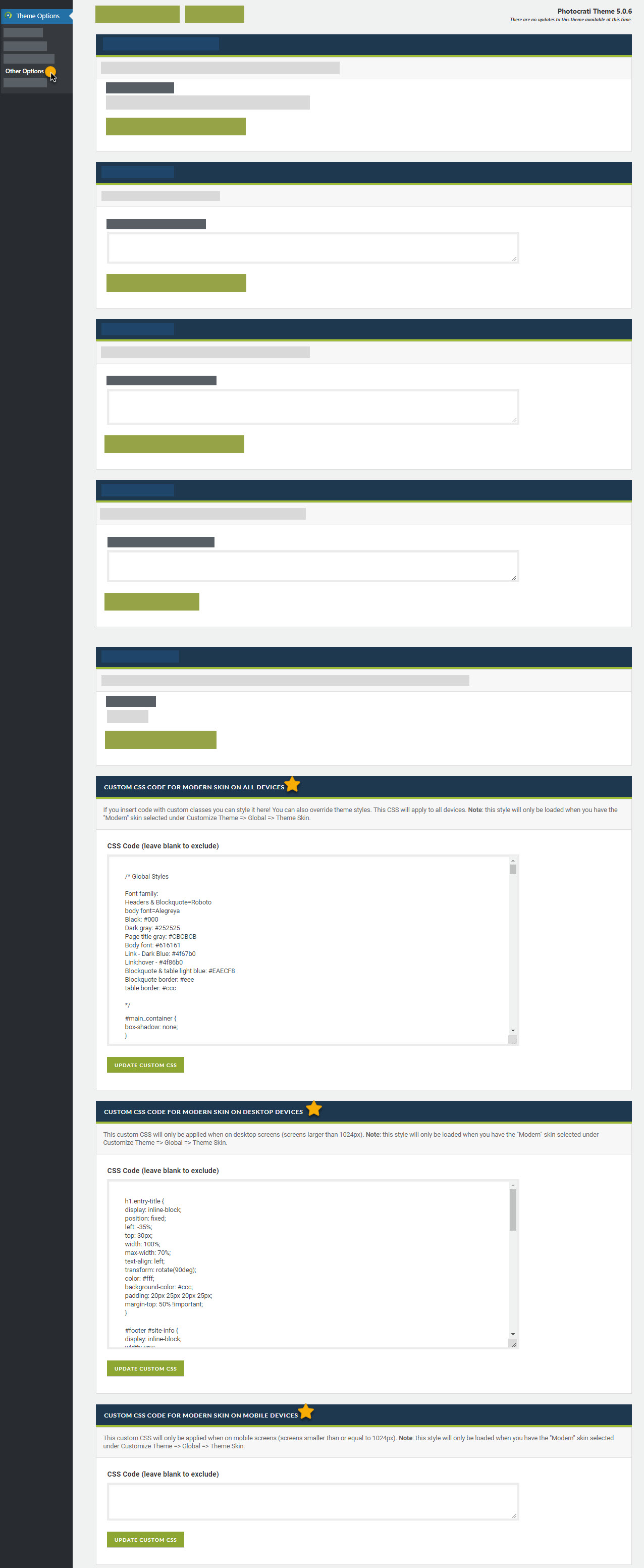
To make custom CSS changes to your theme, knowledge of CSS styling is needed. What will also be helpful is to use the browser Google Chrome to help discover which elements on your site are associated with what CSS #ID or .class .
How to Use Google Chrome to Customize Your Site
1) Open up your website in the Google Chrome Browser
2) ‘Right-Click’ on the element you’d like to customize & select ‘inspect element’
3) As shown here, you’ll see that to change the background color of this page I need to call the body.page-id-2326 class as well as the #container ID
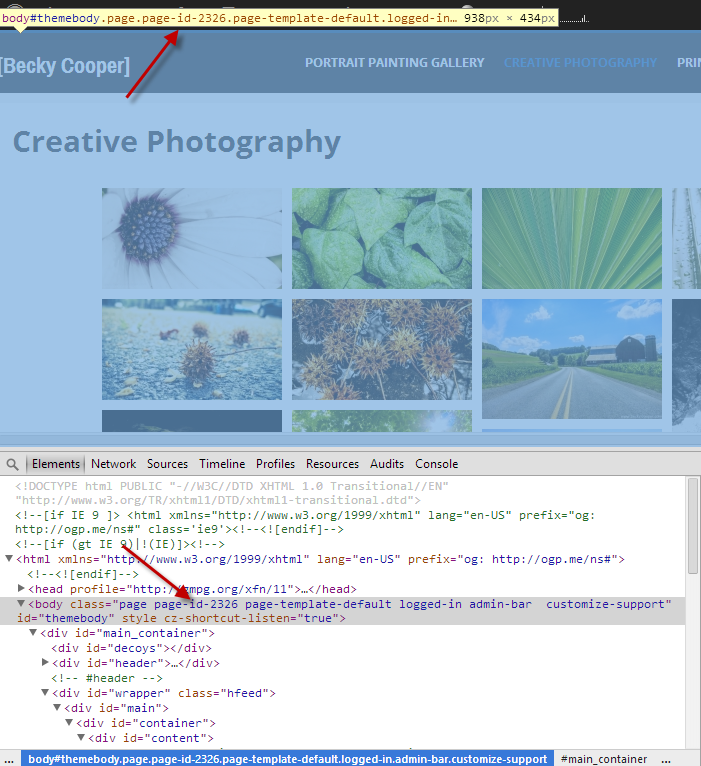
4) When I make my CSS style declarations, I declare those changes by adding the following under Theme Options >> Other Options >> Custom CSS:
body.page-id-2326 #container {

background-color: #474747;

}
Other Style Edits You Might Find Useful
This puts a shaded area behind the navigation menu items:
.menu a:link,.menu a:visited {

background: hsla(120,0%,0%,0.3);

}
This creates a static background image (replace 150px with the height of your header:
body {

background-position: 0px 150px;

background-attachment: fixed;

}
johnny
14 Jun 2010Is there an easier way than this to change background color on an individual page page?
johnny
14 Jun 2010Is there an easier way than this to change background color on an individual page page?
support
16 Jun 2010Currently no. We hope to be able to provide an easier way to do this through an upgrade to our Supertheme Theme Options. We’ll let you know in the News Archive section of this site when/if that becomes available. 🙂
support
16 Jun 2010Currently no. We hope to be able to provide an easier way to do this through an upgrade to our Supertheme Theme Options. We’ll let you know in the News Archive section of this site when/if that becomes available. 🙂